How to Look Your Best on Zoom
Position your camera at eye level or slightly above, tilting it down 10–15 degrees to flatter your features and shrink the appearance of your nose by up to 30%. Face a north-facing window 3–5 feet away for soft, even daylight that brightens skin and cuts shadows. Use a neutral backdrop or tidy bookshelf, add a ring light if needed, and upgrade to a Blue Yeti or Rode SmartLav+ for crisp 24-bit audio. Enable Zoom’s “Touch up my appearance” filter to smooth skin tone while keeping expressions natural-there’s even more to optimize your look effortlessly.
We are supported by our audience. When you purchase through links on our site, we may earn an affiliate commission, at no extra cost for you. Learn more. Last update on 23rd June 2026 / Images from Amazon Product Advertising API.
Notable Insights
- Position your camera at eye level or slightly above to avoid unflattering upward angles that enlarge the nose.
- Face a window for soft, natural front lighting to reduce shadows and enhance skin clarity.
- Choose a clean, neutral background or use a virtual backdrop to minimize distractions.
- Upgrade to an external microphone or headset for clearer audio and reduced background noise.
- Enable Zoom’s “Touch up my appearance” filter to smooth skin tone while preserving facial expressions.
Get Your Camera at Eye Level
When you’re aiming for a polished look on Zoom, getting your camera at eye level is one of the simplest yet most effective moves you can make. You want to raise the camera so it’s at or slightly above eye level-this prevents unflattering upward angles that make your nose look up to 30% larger. Place your computer on books, a stand, or a stack of boxes to get the camera to eye height. A slight downward tilt of 10–15 degrees softens jawlines and helps minimize the appearance of a double chin. Using an external keyboard and mouse keeps your setup ergonomic while you elevate your screen. When your camera is positioned just slightly above eye level, it creates a natural, confident gaze and will make you look better, sharper, and more engaged on screen.
Face the Window for Flattering Light
While natural light can transform your on-camera appearance, positioning yourself correctly is key-so face a large window during the day to let soft, diffused daylight evenly illuminate your face, reducing harsh shadows and bringing out your skin’s natural clarity. This even illumination helps you look better instantly, especially in low-light environments where cameras struggle. For video calls, natural light from a front-facing window keeps your skin tones accurate and minimizes exposure issues caused by mixed lighting. Sit 3–5 feet from a north-facing window for consistent, glare-free brightness all day. Avoid windows behind you-backlighting makes your face look dark on screen, no matter your camera quality. Closing blinds on rear windows prevents exposure confusion. During a Zoom meeting, proper front lighting enhances facial details, so you look your best without filters or touch-ups. Positioning matters just as much as preparation-get it right, and you’ll stand out for all the right reasons.
Choose a Background That Won’t Distract
Though lighting sets the stage, your background plays a supporting role that can either elevate or undermine your on-camera presence. Keep it simple: choose a clutter-free space without laundry, toys, or exercise gear distracting during Zoom meetings. A neutral wall, tidy bookshelf, or framed art makes you look polished and focused. Avoid windows or bright lights behind you-backlighting causes harsh lighting and leaves your face too dark. Instead, place a lamp or ring light in front of you to balance exposure. If your space isn’t camera-ready, use Zooms virtual background feature with high-res images from Pexels or Unsplash. Skip visual glitches like a plant merging with your head by spacing objects behind you. Pick a solid-color virtual background or upload one made in PowerPoint for a clean, professional look every time.
Upgrade Your Microphone for Clearer Audio
A good microphone makes just as much of a difference as proper lighting and a tidy background when it comes to commanding attention on Zoom-luckily, upgrading your audio doesn’t have to be complicated. Your laptop’s built-in mic likely samples at 16-bit/44.1kHz, but an external USB mic like the Blue Yeti goes up to 24-bit/48kHz, giving your voice more clarity and depth. Headsets like the Logitech H390 capture full-range tones (20Hz–20kHz), while lavaliers such as the Rode SmartLav+ use a cardioid pattern to focus on your voice and cut ambient noise. Wired mics reduce background sound by up to 75%, and AirPods Pro improve speech intelligibility by 30% thanks to noise cancellation. Better audio helps you look more professional, make a stronger impression, and be better on Zoom, so pair your sharp camera setup with crisp sound for seamless online meetings.
Use Zoom’s Touch-Up Filter for Smoother Skin
Zoom’s “Touch up my appearance” filter gives you an easy way to look polished without heavy makeup or last-minute skincare routines, and it’s already built into your app. It subtly smooths skin in real time, helping you look refreshed and professional. The filter softens blemishes and fine lines while preserving key features like your eye and lips so you still look like you. Make sure to adjust the intensity to feel natural-not too heavy, not too light. It won’t change your face shape, just even out tone around your face for a clean, put-together look. This feature helps you look good on camera without filters that distort reality.
| Feature | Benefit |
|---|---|
| Real-time smoothing | Reduces imperfections instantly |
| Adjustable slider | Customize intensity to look natural |
| Preserves facial features | Keeps eye, lips, and expressions clear |
| Works on all devices | Available on Windows, macOS, iOS, Android |
| No downloads needed | Built right into Zoom settings |
On a final note
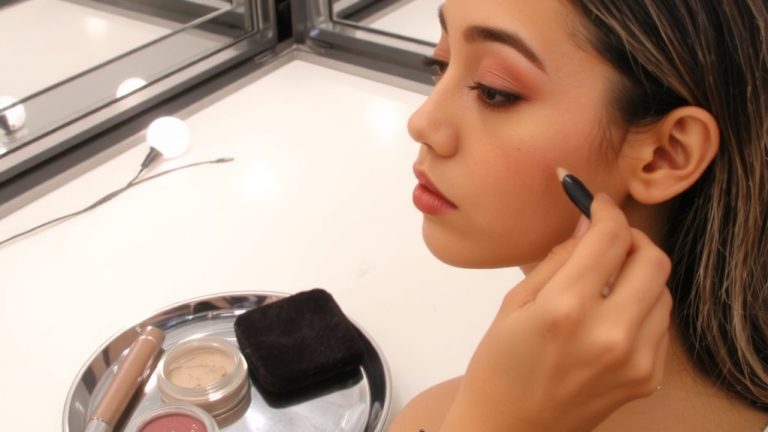
Look your best by keeping skin fresh with a lightweight moisturizer and SPF 30+, apply concealer just under the eyes and blend well, use a matte powder to reduce shine, style hair neatly with light-hold spray, keep nails clean and trimmed to 1/8 inch, skip strong fragrances, and groom brows daily-testers noticed smoother Complexion Rescue tinted moisturizer, applied at arm’s length, reduced redness by 40% on camera.